Everything about your confirmations, in one place.
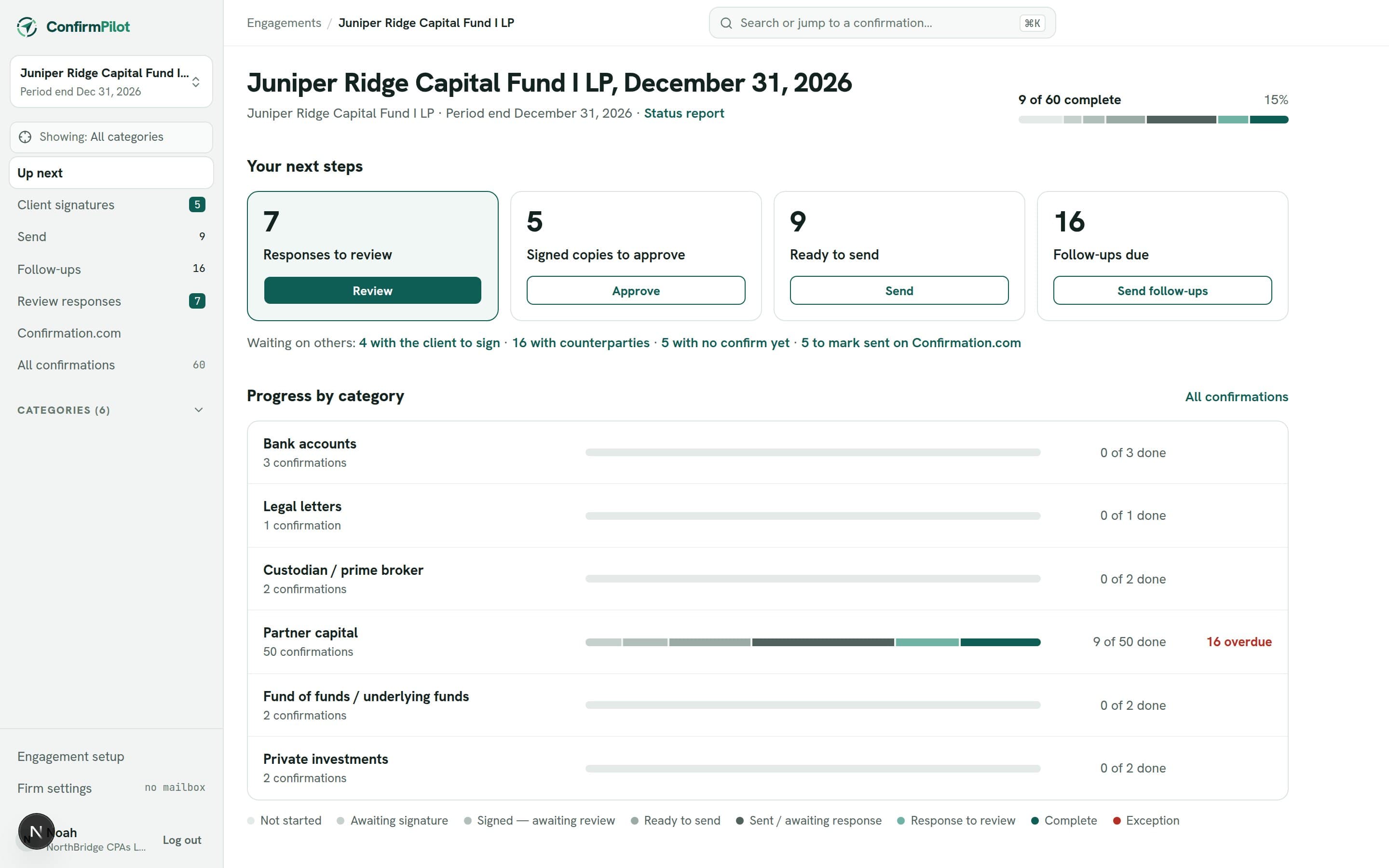
See where things stand, and what to do next.
The dashboard shows what is waiting on your team (responses to review, confirmations ready to send, follow-ups due) and what is waiting on others, such as client signatures.
Progress is shown by category, with overdue confirmations counted, and the full tracker sits below. Filter it by category, stage or channel, show overdue only, or search by name, ID or email.
Each category keeps its own list of confirmations.
Choose the categories an engagement needs: bank accounts, receivables, payables, legal letters, partner capital and more, or create your own. Add each counterparty with their To and CC addresses, one after another, or paste rows from a spreadsheet.
Upload each confirm on its row, or generate it from the category’s letter template using details you fill in per recipient.
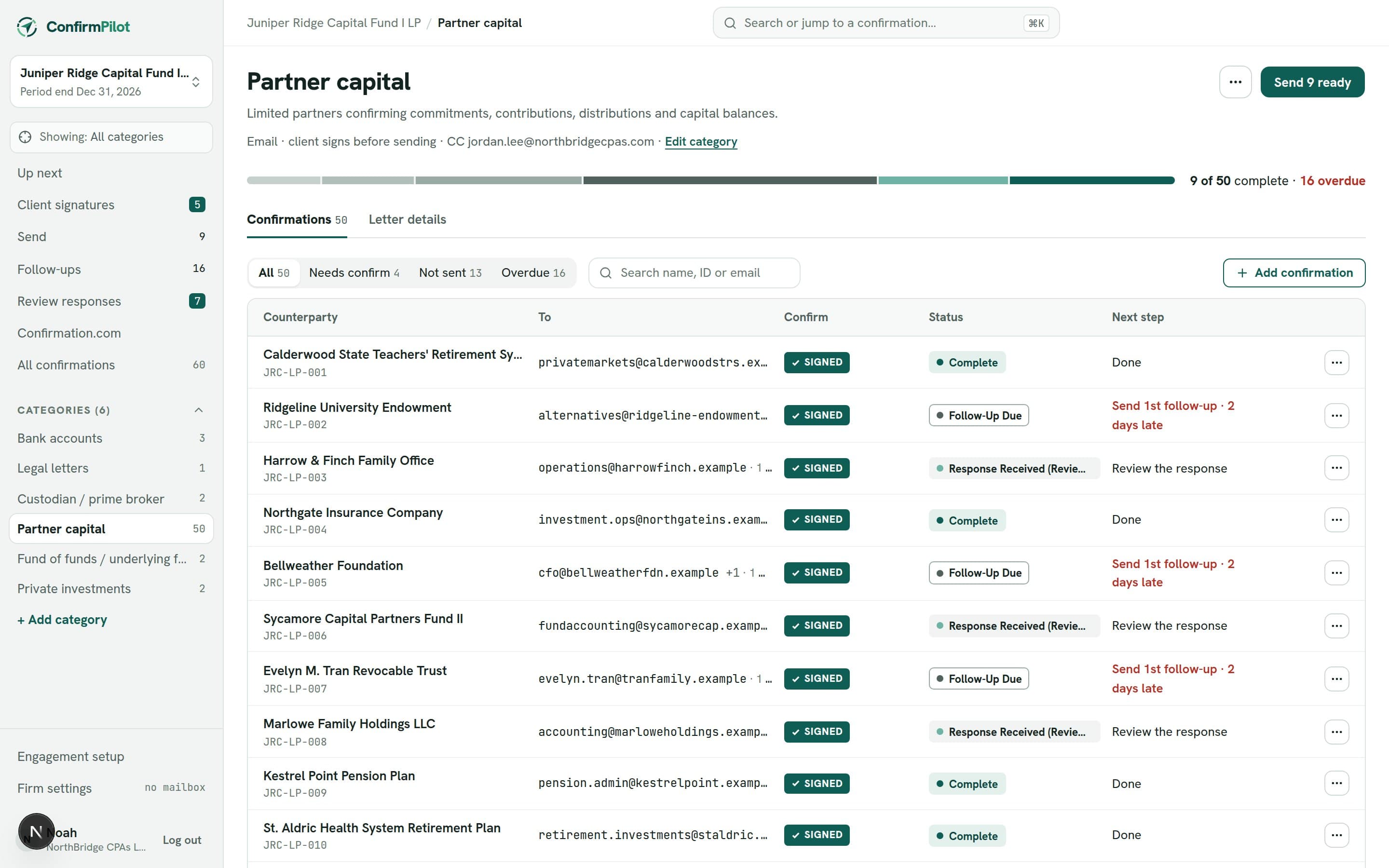
One clear status for every confirmation.
Statuses change as the work happens: the client signing, you approving, sending, receiving a response and reviewing it.
- 01DraftAdded, but the confirm isn’t uploaded or generated yet.
- 02Awaiting Client SignatureThe confirm is waiting for the client’s signature.
- 03Signed — Awaiting Auditor ReviewThe client has signed; you check it before anything is sent.
- 04Approved — Ready to SendApproved (or no signature needed) and ready to go out.
- 05Sent / Awaiting ResponseSent; waiting for the counterparty to respond.
- 06Follow-Up DueNo response yet and the next follow-up date has passed.
- 07Response Received (Review Required)A response has come back and is waiting for review.
- 08CompleteReviewed: the response agrees.
- 09ExceptionReviewed: the response shows a difference to resolve.
Dates and follow-ups, recorded for you.
For every confirmation: the date sent, days outstanding, how many follow-ups have gone out, the next follow-up date, and the response date. They come from what actually happened, so nobody types them in and they can’t drift out of date.
Confirmations sent through Confirmation.com are tracked alongside the rest.
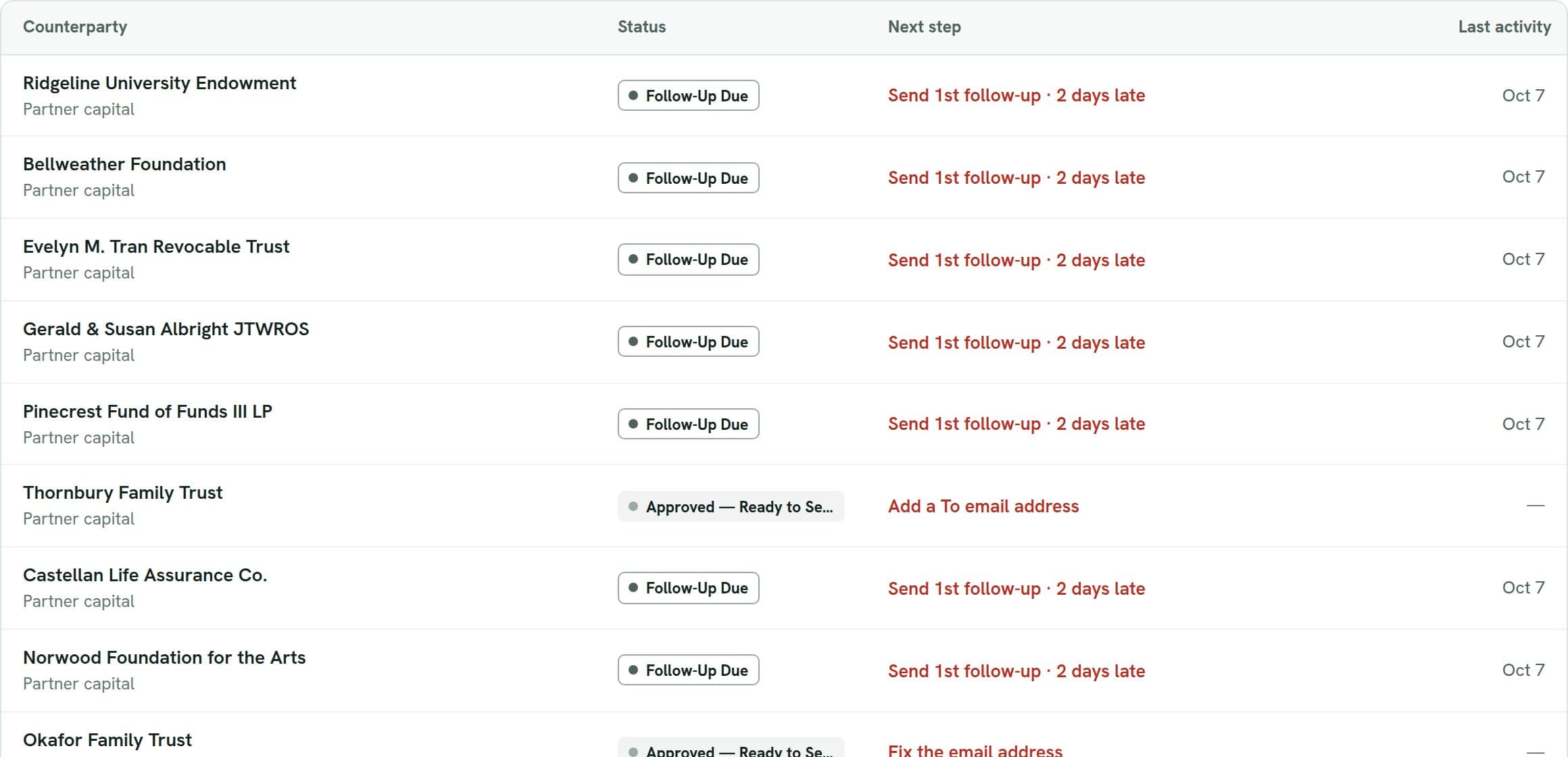
Know which confirms are waiting on the client.
Confirmations that need the client’s authorization stay in their own list until the signed copy is back. Send each unsigned confirm to the client contact to sign, see which have been requested, and approve signed copies as they come back.
Check the batch before it goes out.
Every confirmation that is ready to go, with its recipients and the attachment that will be sent. Anything that would block it, such as a missing address or an unsigned confirm, is flagged. Preview each email, then send the batch.
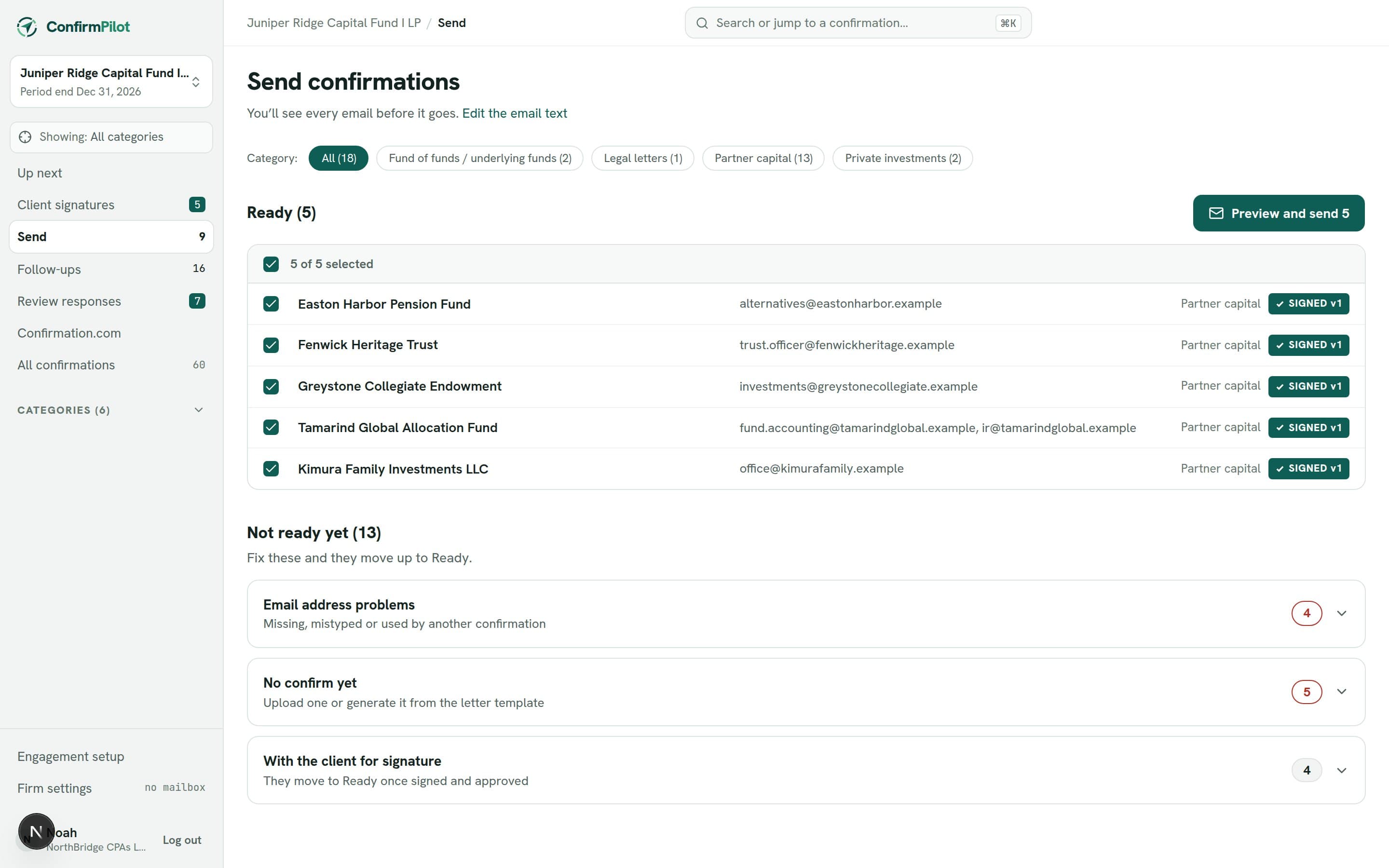
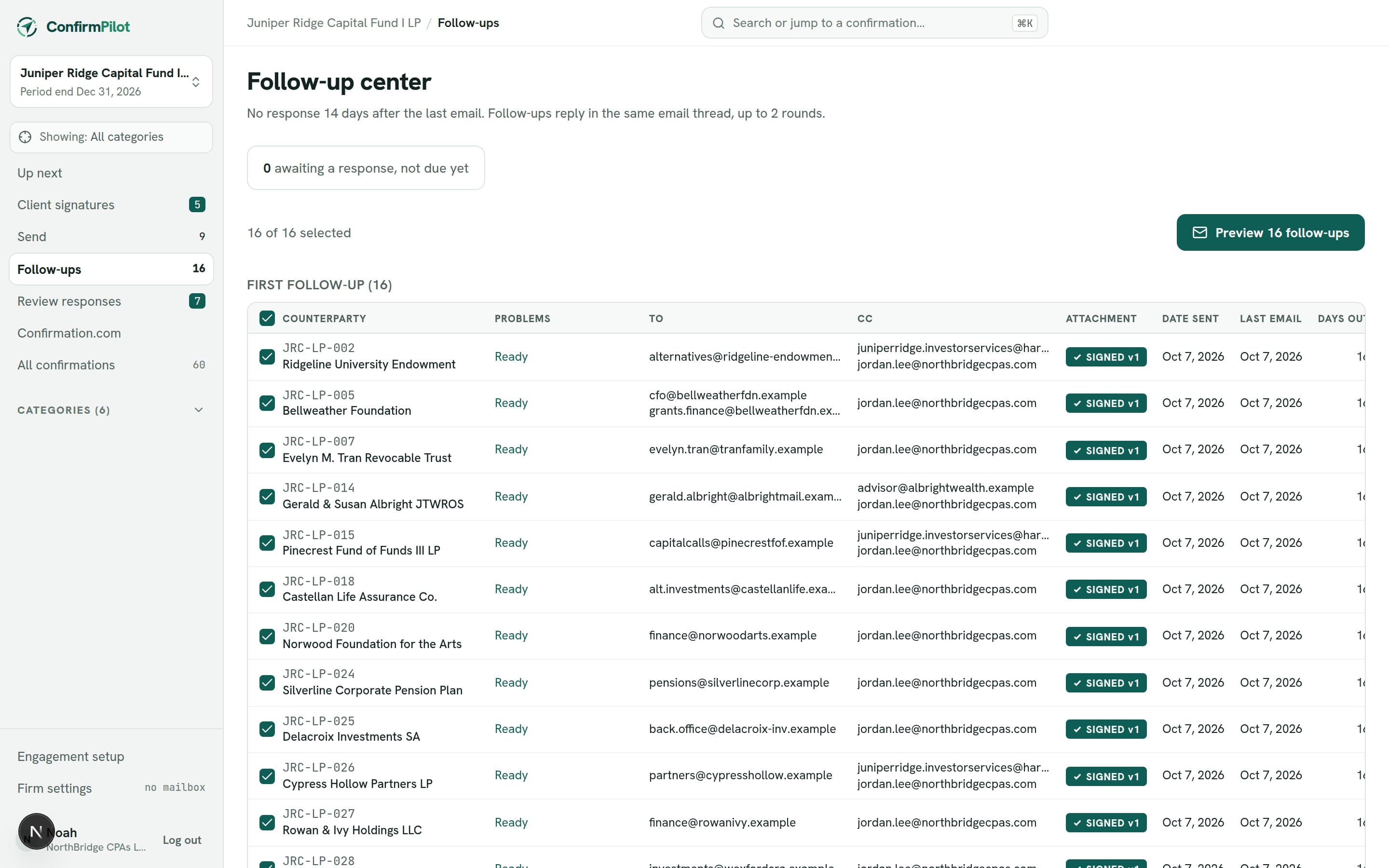
Follow-ups that keep themselves organized.
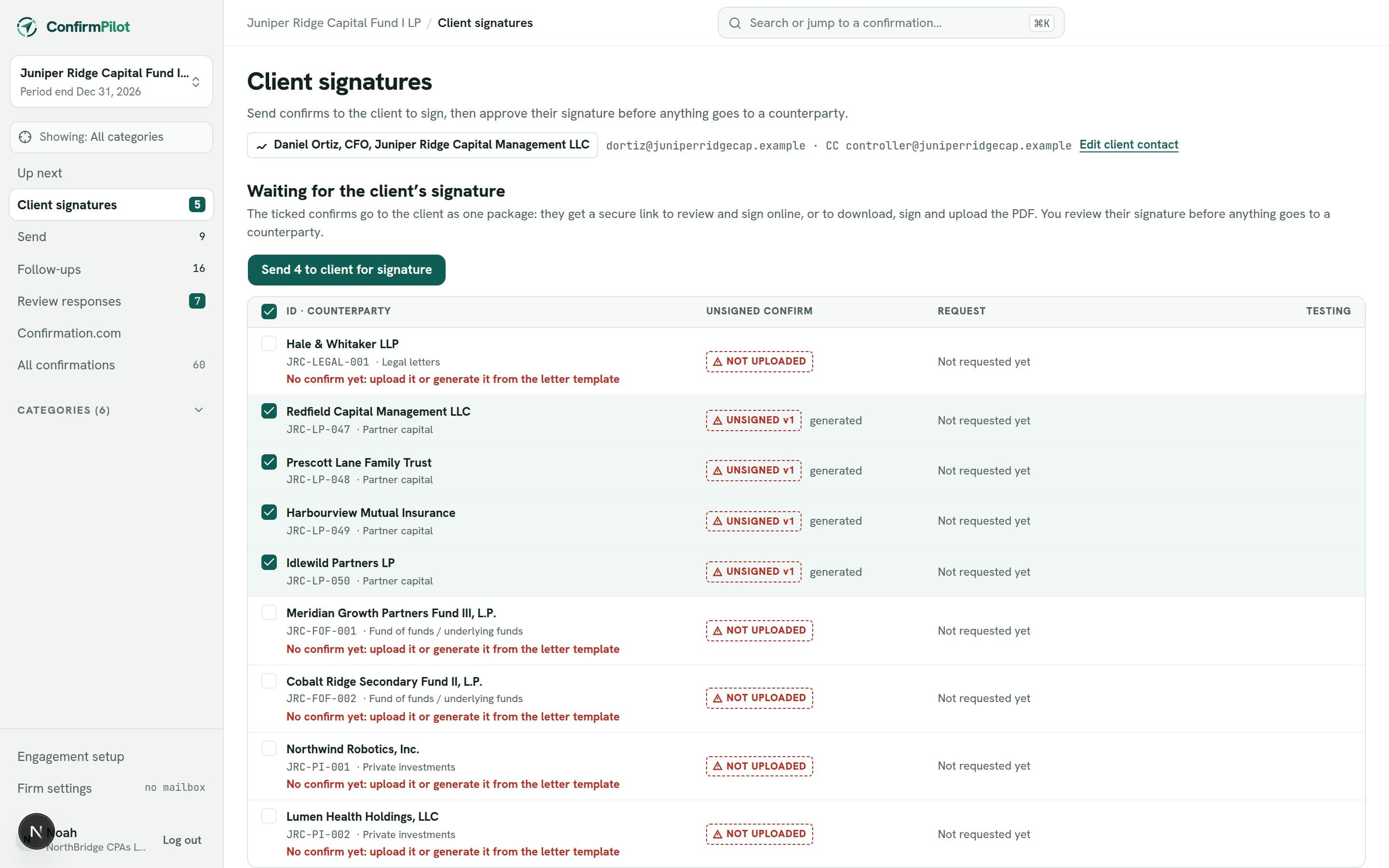
Confirmations without a response are listed when their next follow-up is due, grouped by first, second and later follow-ups. Follow-ups reply in the original email thread, to the same recipients.
Each engagement sets its own timing, such as every 10 days, up to three times. Turn on automatic follow-ups and ConfirmPilot sends the due ones each weekday at the hour you choose: counterparty follow-ups, reminders to the client to sign, or both. It stays off until someone on your team turns it on.
Or pick a time with Send later: everything ready at that moment goes out, with the same checks as clicking Send.
Bounced emails and out-of-office replies are recognised, not mistaken for responses. A bounce is flagged on the confirmation and its follow-ups wait until someone fixes the address. When you add a counterparty, ConfirmPilot suggests the addresses your firm used for it before, and shows which ones replied.
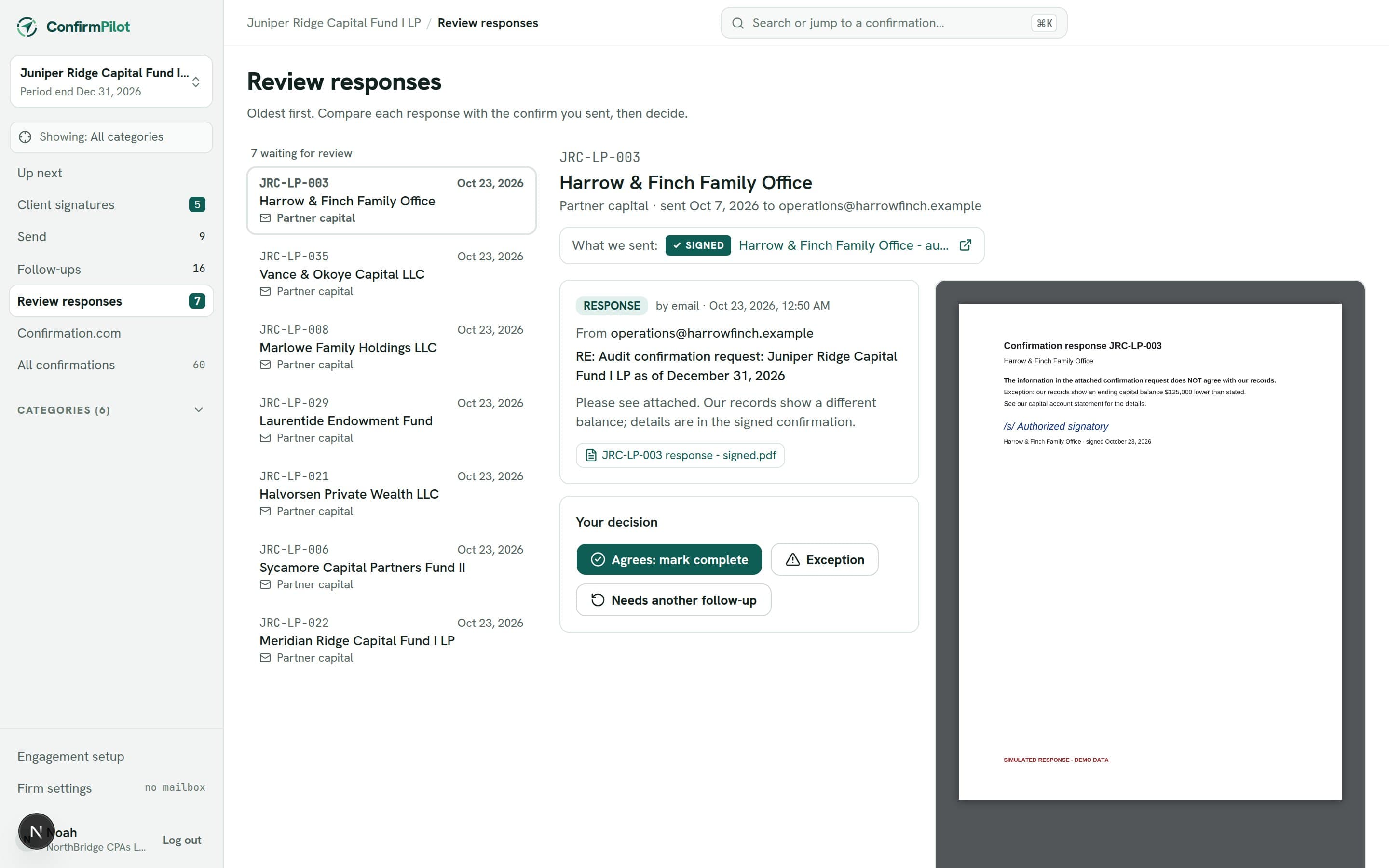
Review each response next to what you sent.
Responses are matched to their confirmation and wait in a review queue. Compare each one with the confirm you sent, then mark it complete, record an exception, or ask for another follow-up.
A printable status report summarizes the engagement by category for the file or the partner.
Next year, start the new engagement from this one: the same categories, letters, counterparties and email addresses come across as drafts, with amounts and dates cleared for you to fill in.
See it with your own confirmations.
A live walkthrough of the workflow, using an example engagement.